This article guides you through the signing process as a signer — from receiving the email notification to completing your action. No DiliTrust account is required.
Step 1 — Open the signing request
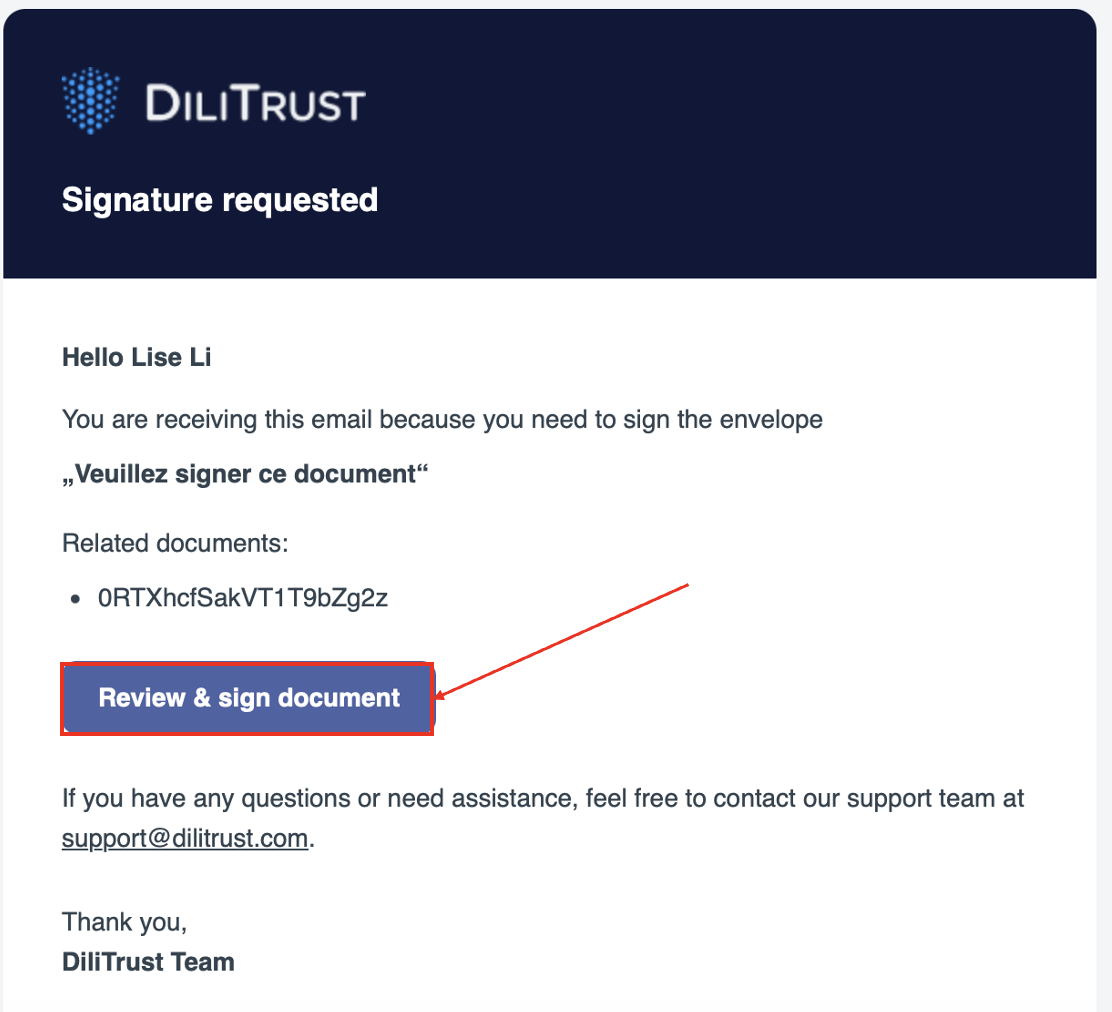
You will receive an email notification from DiliTrust Sign containing a secure link to your signing request.
- Open the email and click Review & sign document
- You are redirected to the DiliTrust Sign signing interface
⚠️ The link is personal and single-use — do not share it with anyone else.
Step 2 — Authenticate
Before accessing the document, your identity is verified. The method depends on how the sender configured your signing request:
- Email link — access is granted automatically when you click the link in the email
- OTP by SMS — you are asked to enter a one-time code sent to your mobile number
Step 3 — Review the document
Once in the signing interface, you can review the document before taking any action.
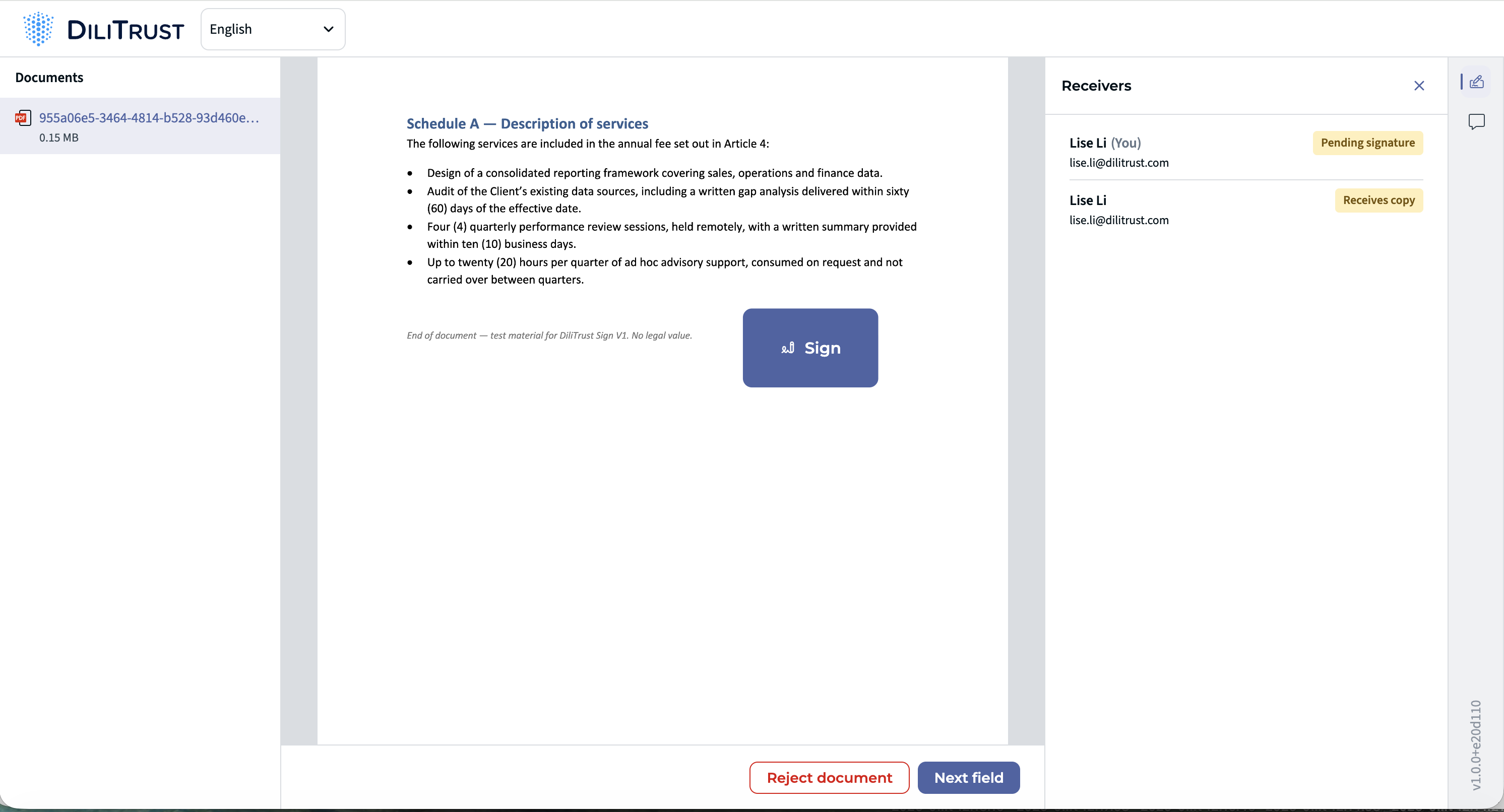
- Use the language selector at the top left to display the interface in your preferred language
- Read the document carefully
- Open the Receivers panel to see everyone involved and their status (for example Pending signature or Receives copy)
- If needed, add a note from the Comments panel — note that every receiver will be able to read it
Step 4 — Complete your action
Use the Next field button at the bottom right to move to each field that requires your action.
- Click the Sign block displayed on the document
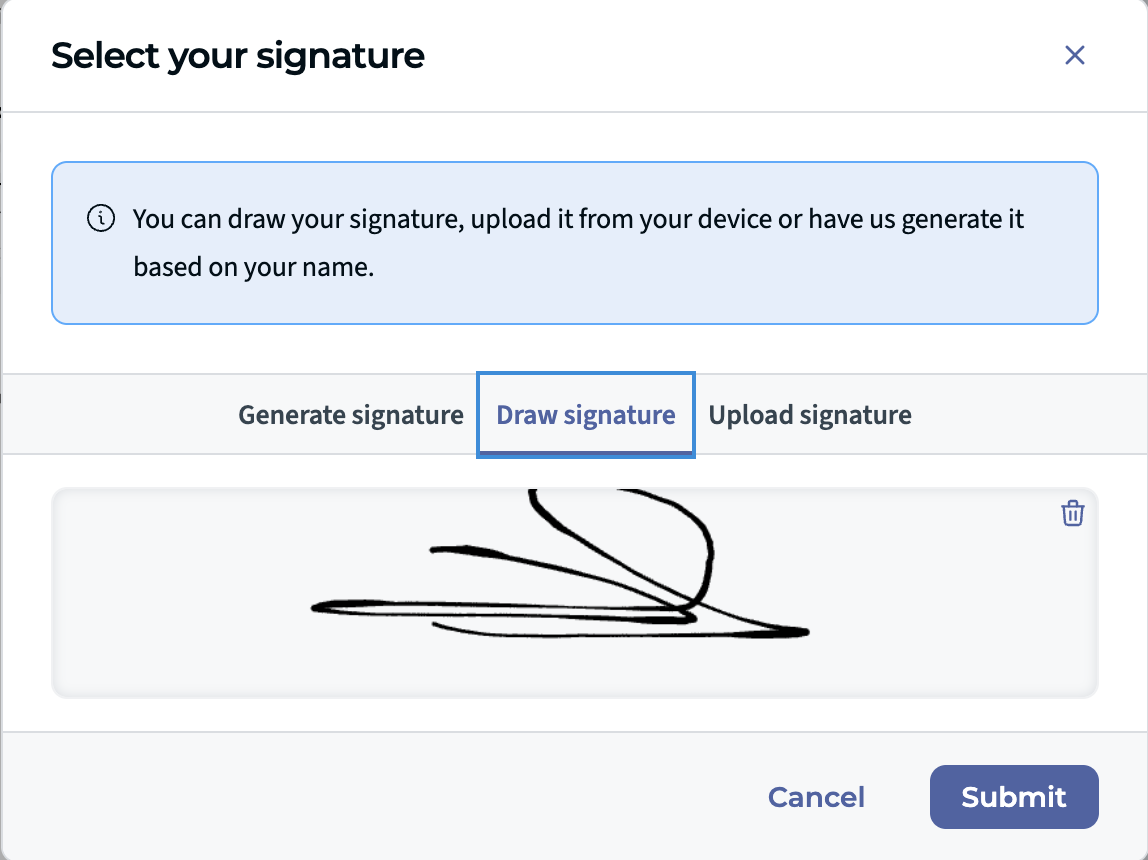
- In the Select your signaturewindow, choose one of the three options:
- Generate signature — we generate a signature based on your name
- Draw signature — draw your signature directly
- Upload signature — upload a signature image from your device
- Click Submit
If you do not agree with the document, you can click Reject document instead of signing. The sender will be notified.
Step 5 — Confirmation
Once you have submitted:
- You receive a confirmation email acknowledging your action
- When all signers have completed their action, you receive the final signed document along with the Certificate of Completion
→ Learn more about the Audit Trail & Signature Traceability
Was this article helpful?
That’s Great!
Thank you for your feedback
Sorry! We couldn't be helpful
Thank you for your feedback
Feedback sent
We appreciate your effort and will try to fix the article