In these modules, each user connects their own e-signature provider independently. There is no tenant-wide configuration — every user manages their own connection from the DiliStore.
✋ Before you start
Make sure one of the following permissions are enabled at the tenant level. If they are not, contact your administrator.
| Permission | Required for |
|---|---|
| External electronic signatures | Connecting any pre-built provider (DocuSign, Adobe Sign, etc.) |
| API electronic signature | Connecting a custom provider via the Generic API connector |
Use the first if your provider is in the DiliStore list, the second if it is not. You will also need an active account with the provider of your choice before connecting it to DiliTrust.
✅ Set up a provider
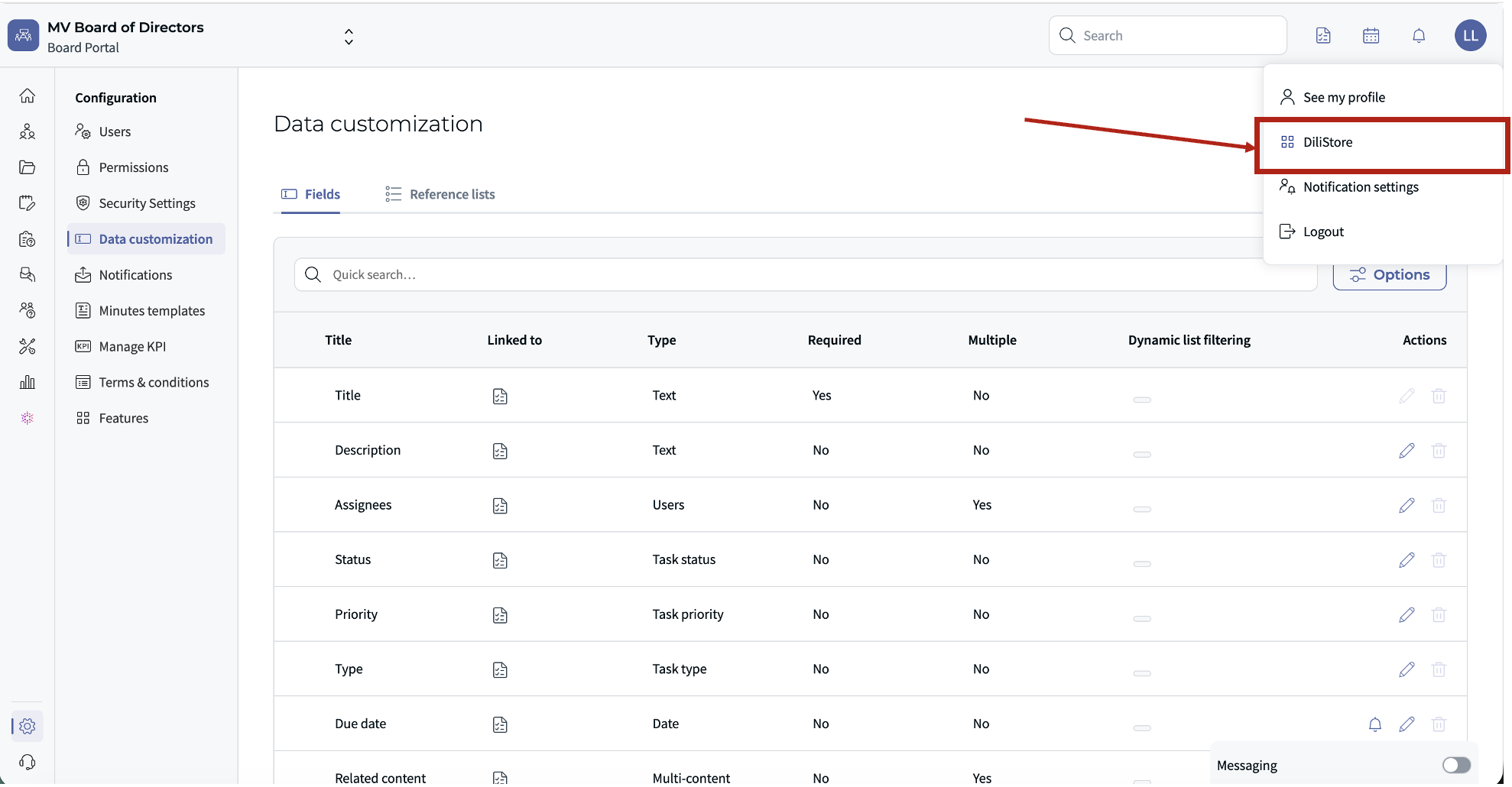
- Click on your photo or initials in the top right corner of the screen
- Open the DiliStore
- Browse the list of available e-signature providers
- Click on Integration setup on the provider you want to activate
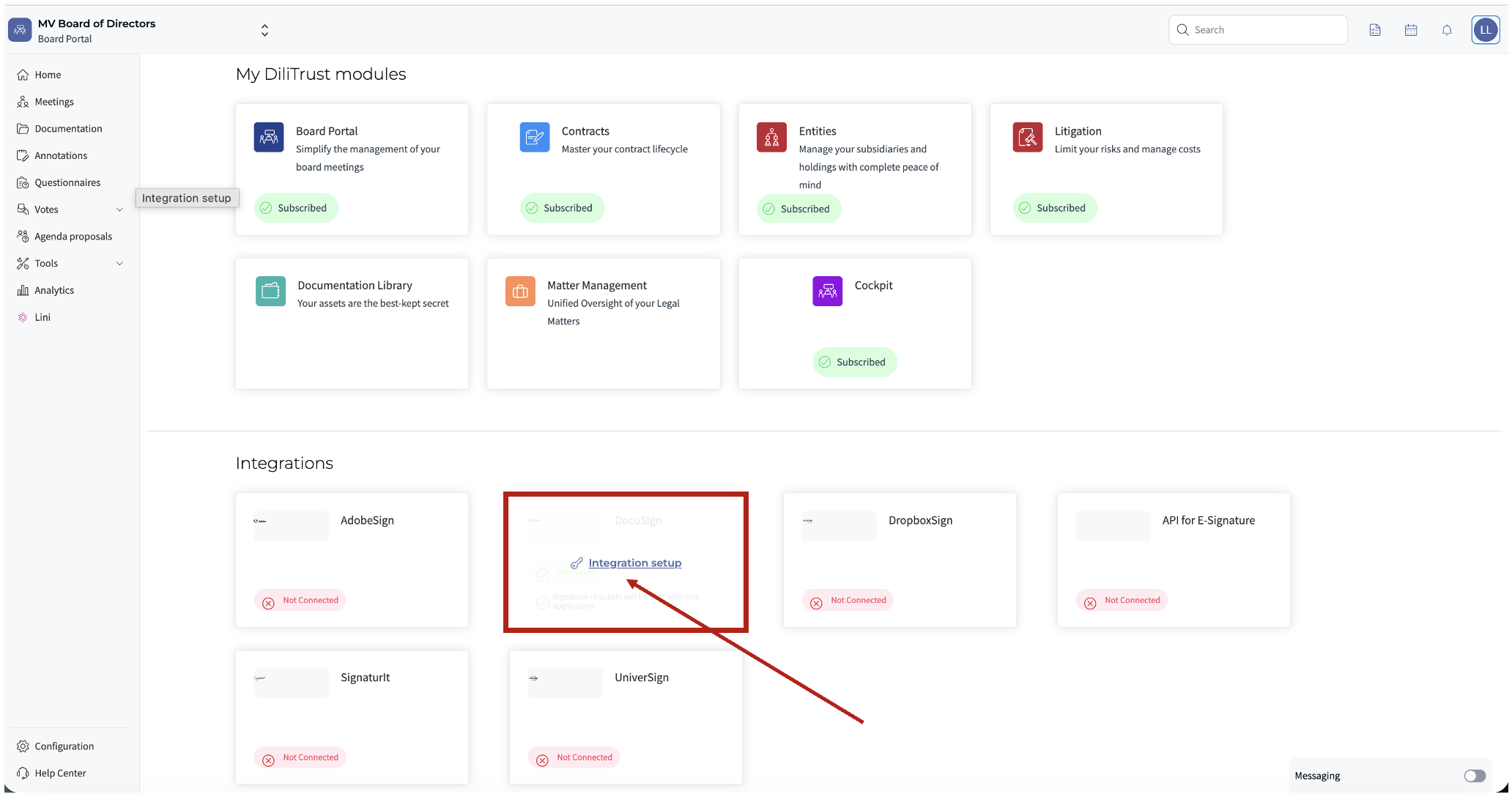
- Enter your personal credentials for that provider (login/password or API key)
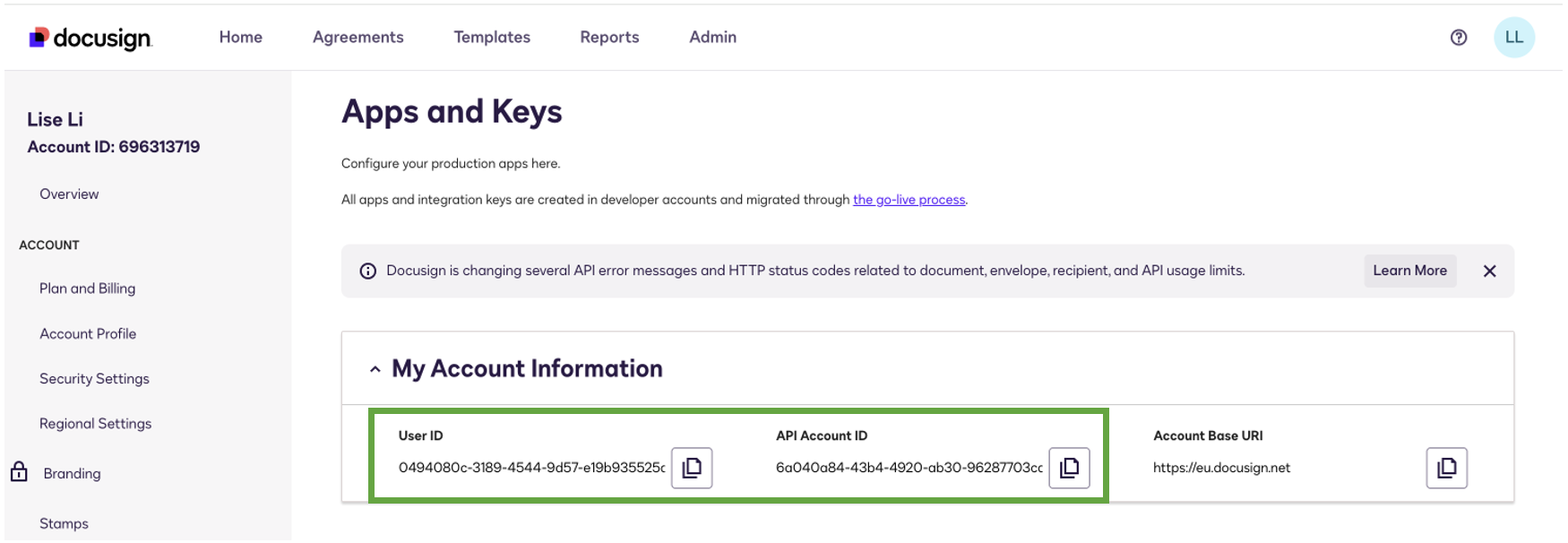
Where to find your credentials depends on the provider. For DocuSign, for example, you can find your User ID and API key in Admin menu > Integrations > Apps & Keys. For other providers, check your account settings or reach out to their support team if needed.
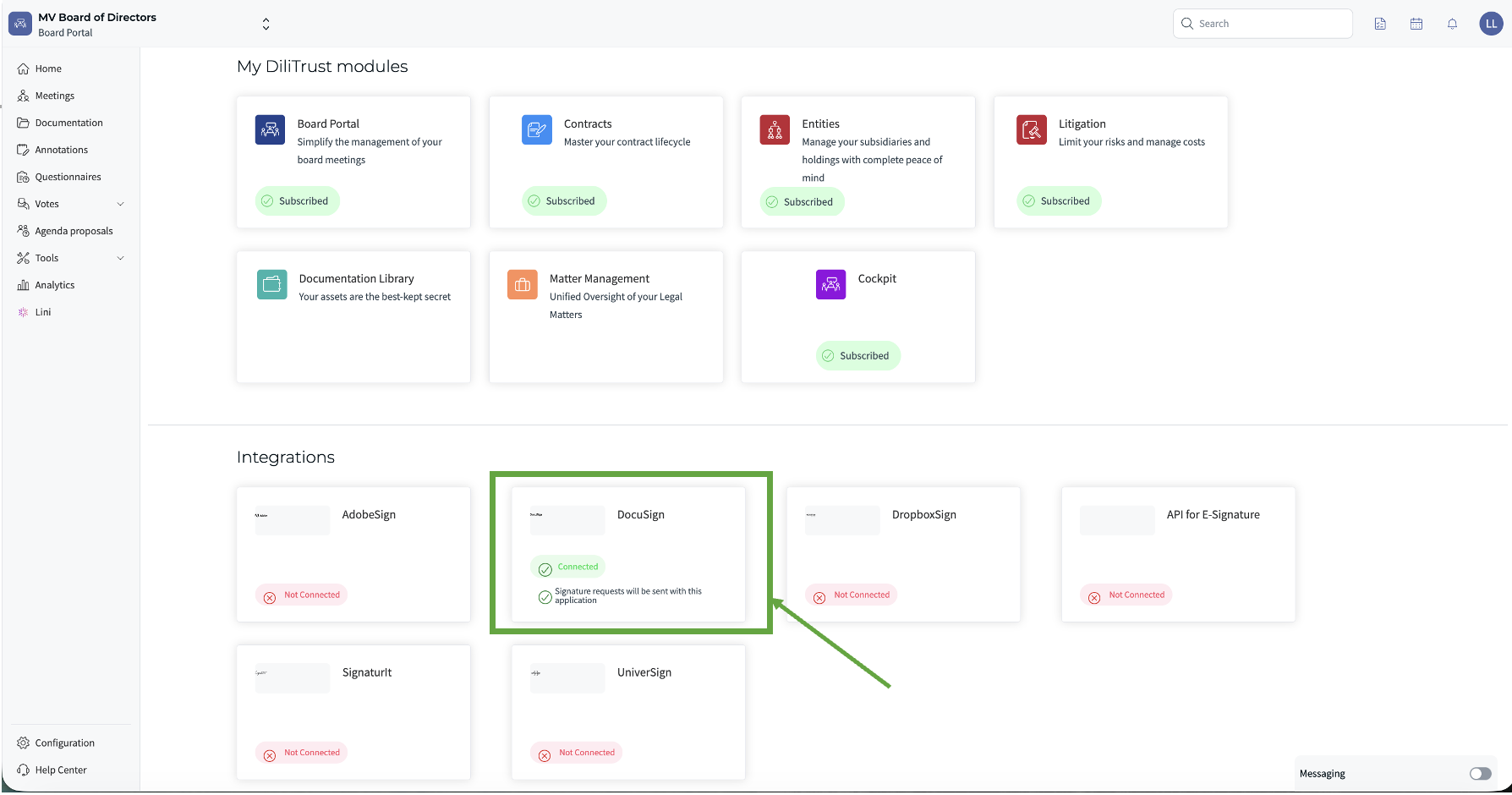
Once the status turns green, your provider is active and ready to use
☝ Change your provider
- Open the DiliStore
- Make sure any in-progress signature workflows are completed or cancelled
- Click Disconnect on your current provider
- Click Integration Setup on the new provider and enter your credentials
- Once the status turns green, your new provider is active
⚠️ Disconnecting a provider while a signature workflow is in progress may interrupt or block that workflow. Always complete or cancel pending requests before switching.
⚡ Connect a provider not in the list
If your provider is not listed in the DiliStore, DiliTrust offers a Generic API Connector. The API electronic signature permission must be enabled at the tenant level before proceeding.
If you experience issues connecting your provider or need help choosing the right one for your use case, contact your administrator or our support team.
A well-chosen provider ensures your documents are signed with the right level of security for every situation — take the time to pick the one that fits. ✨
Was this article helpful?
That’s Great!
Thank you for your feedback
Sorry! We couldn't be helpful
Thank you for your feedback
Feedback sent
We appreciate your effort and will try to fix the article